Guide
Everything the app can do, step by step. Pick a topic or read it top to bottom.
Sign in
You can sign in four ways. Any of them gives you the same account, and you can connect the others later.
- Open Sign in and pick Trakt, Hikka, MyAnimeList, or Google.
- Trakt, Hikka and MyAnimeList bring your lists to the wheel.
- No Trakt, Hikka or MyAnimeList account? Sign in with Google and add your own titles with the + Add to My titles button in the right column. Until you do, the wheel spins popular titles.
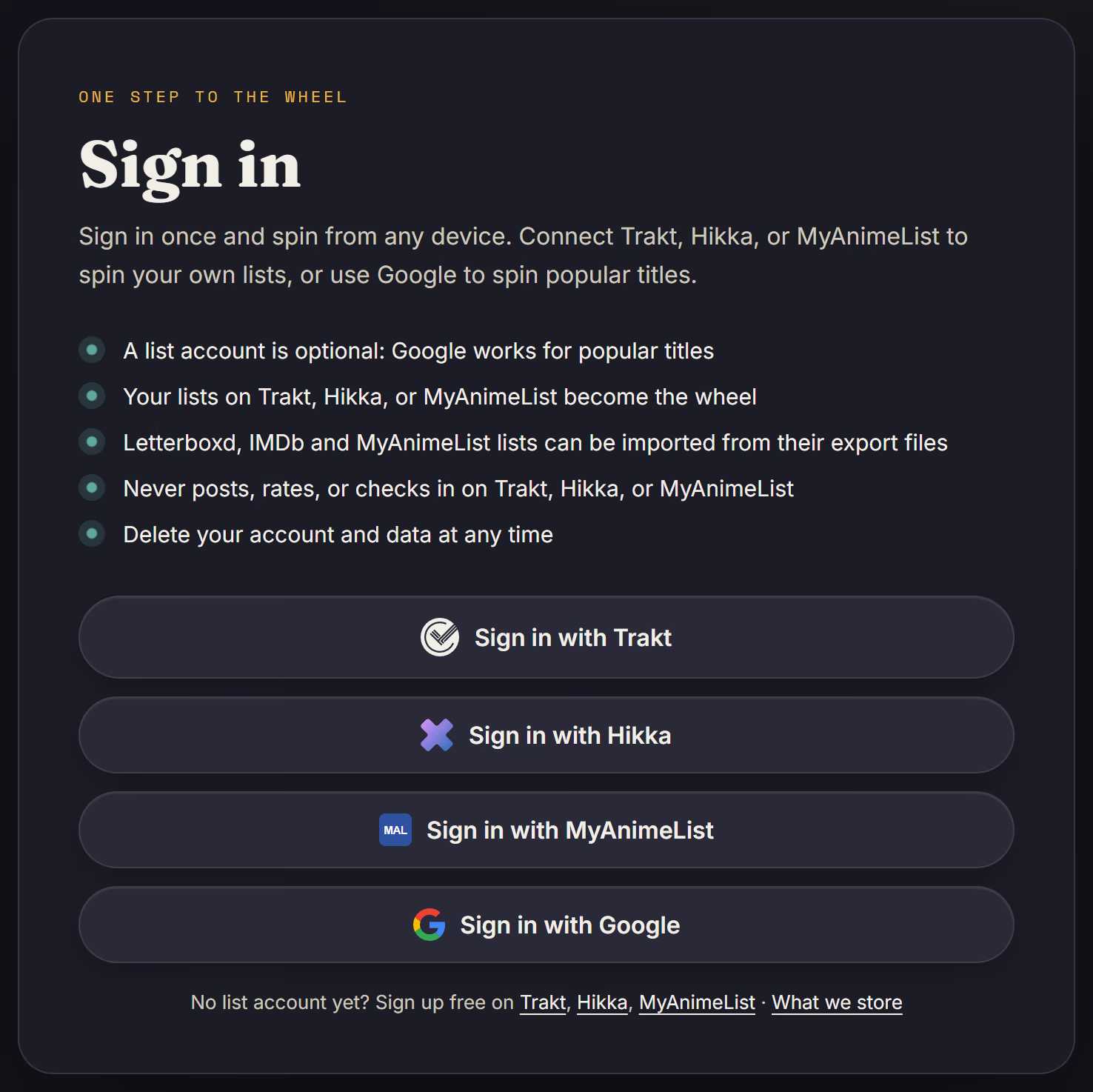
- Tonight’s Pick only reads your lists. It never posts, rates, or checks in anywhere.
Lists and sync
Your lists are copied to the app so the wheel loads fast. They refresh when you sign in and whenever you press Sync now.
- Trakt gives your watchlist and custom lists; Hikka and MyAnimeList give planned, watching and on-hold anime; Hikka also gives your public collections.
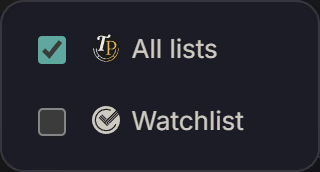
- Open All lists in the header to choose which lists to sync, then press Sync now.
- Lists exported from Letterboxd, IMDb or MyAnimeList can be imported: open Add to My titles, then Import, pick the source and drop the file. Each import becomes its own list next to the others.
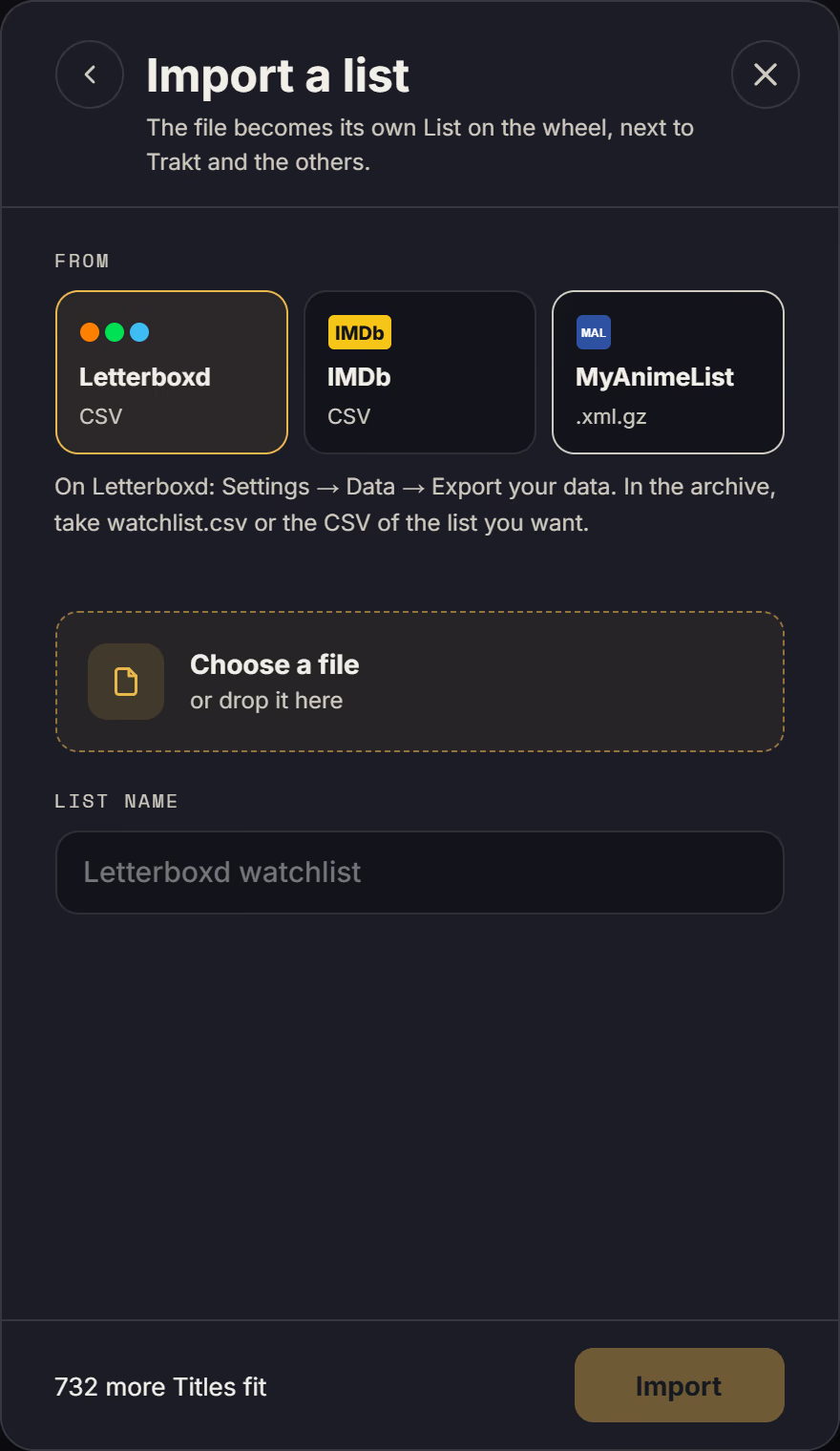
- To refresh an imported list, open it in the My titles menu and choose Update from a new file.
My titles
My titles are films, series and anime you add by hand, without any list account.
- In the right column, press Add to My titles.
- Search by title, switch between All, Movies, Series and Anime, tick what you want and press Add.
- Open the Mine tab to see every title you keep, filter it by list, and remove what you no longer want with the bin button.
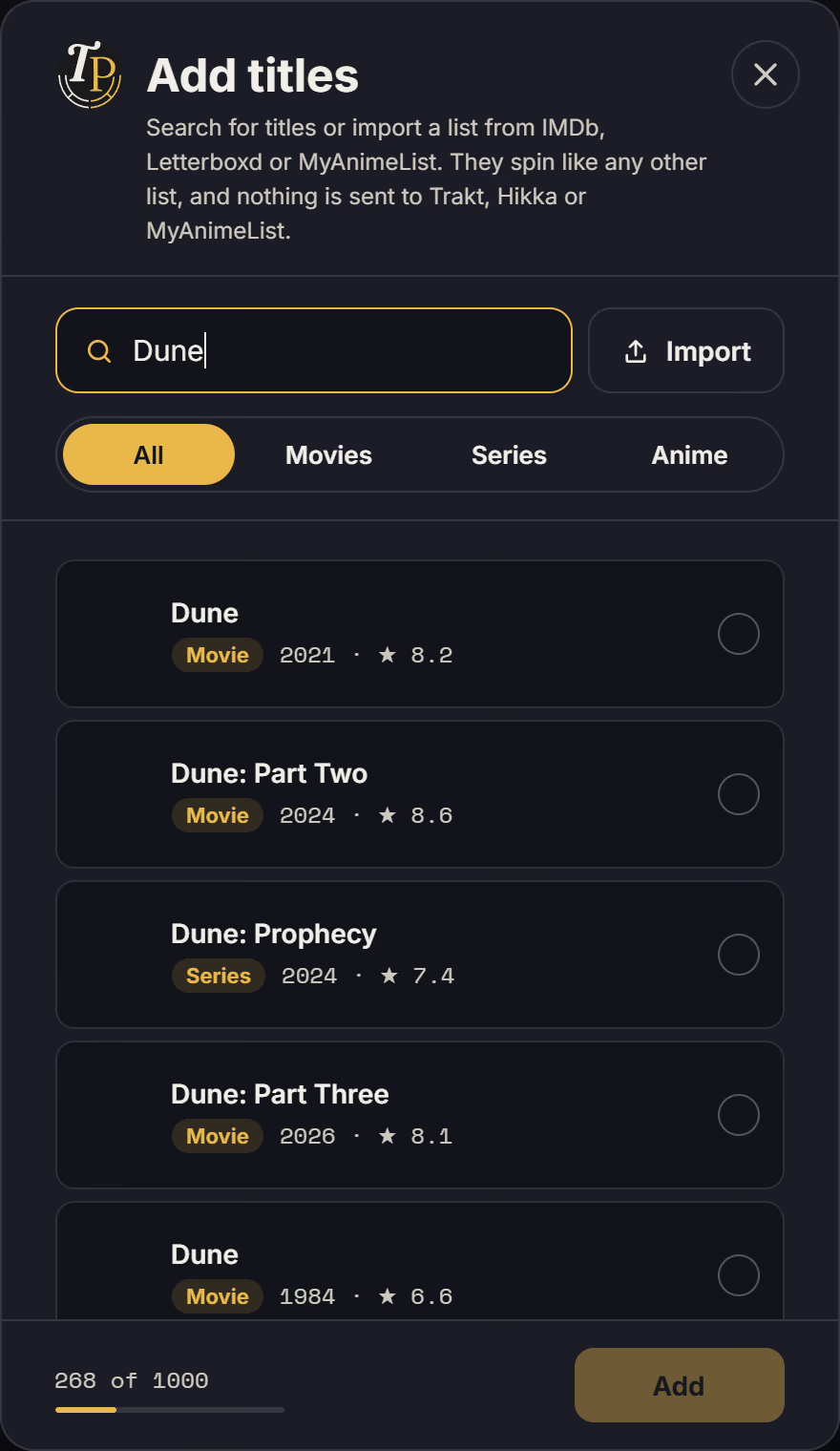
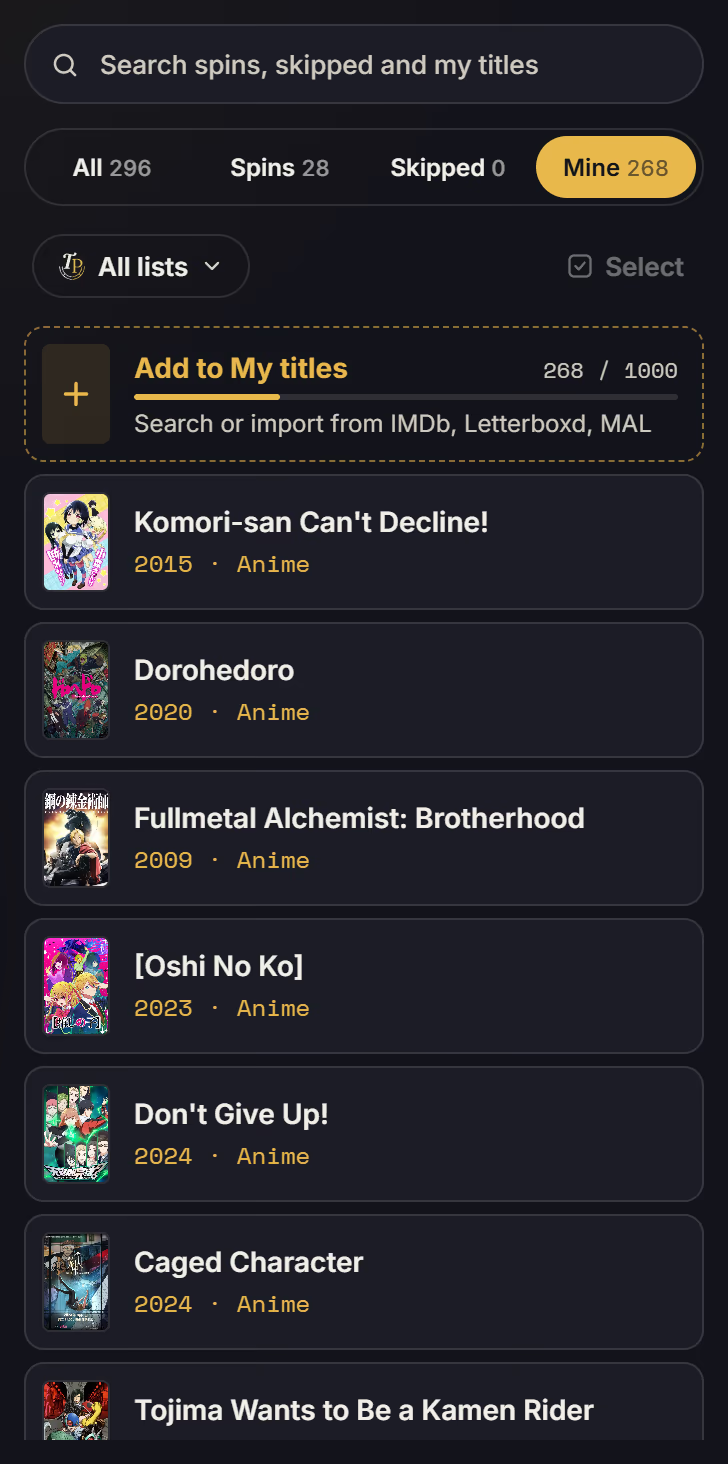
- The counter on Add to My titles shows how many titles you keep and your plan’s limit.
Wheels and spinning
A wheel is a set of filters over your lists. My wheel always exists; you can save more for different moods.
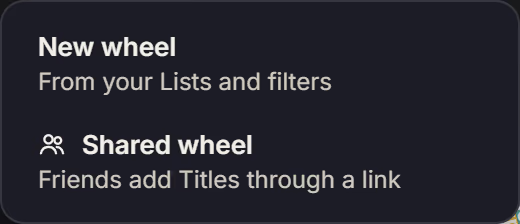
- Press + next to the wheel tabs and choose New wheel.
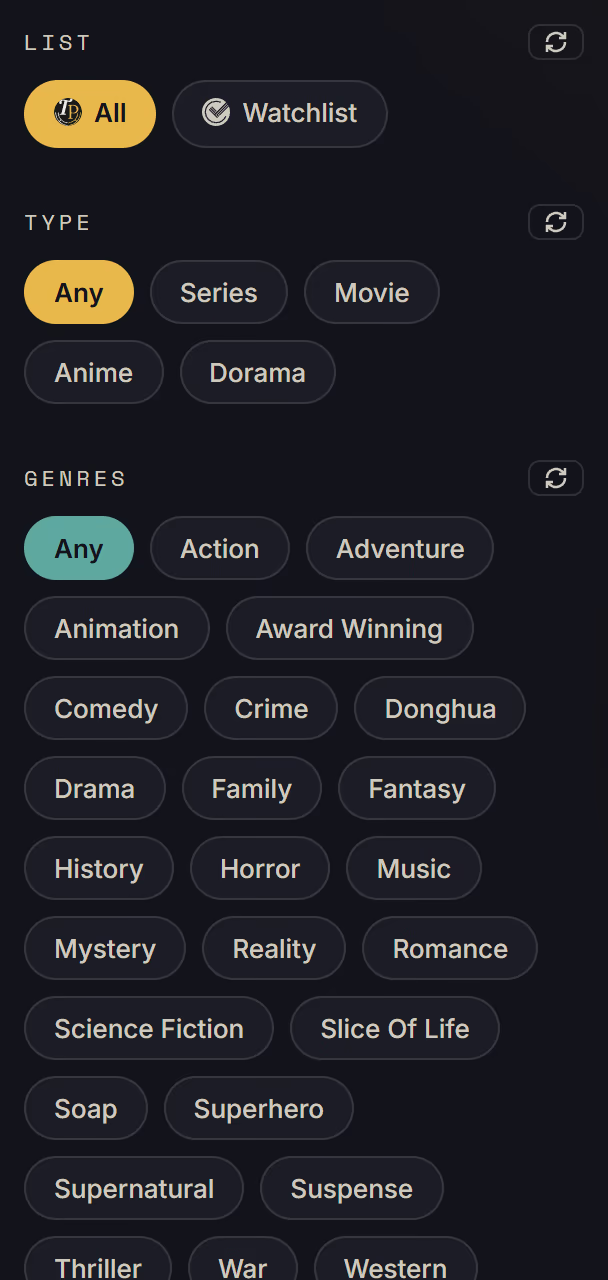
- Set the filters on the left: lists, type, genres, country, actors, minimum rating, release year and how many titles the wheel holds. A wheel saves its filters by itself.
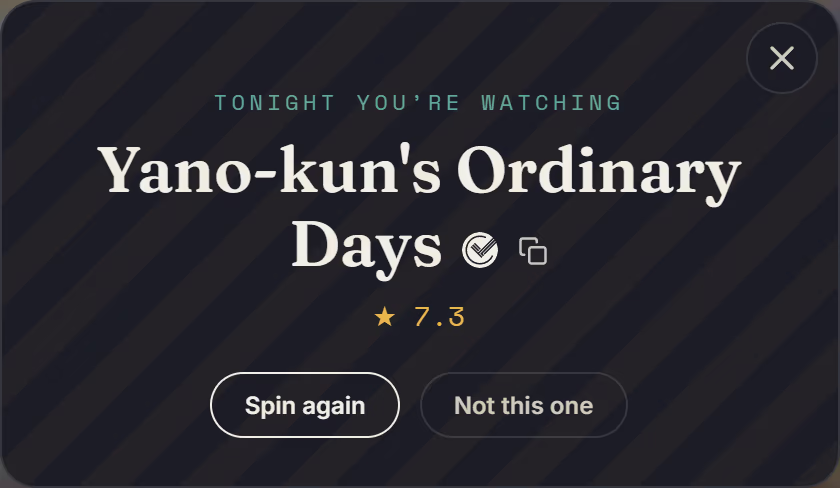
- Press Spin the wheel in the middle. When it stops, Spin again keeps the winner, Not this one skips it.
- Skipped titles stay off the wheel until newer skips push them out. Put one back early from the Skipped tab on the right.
- The Spins tab keeps your recent winners.
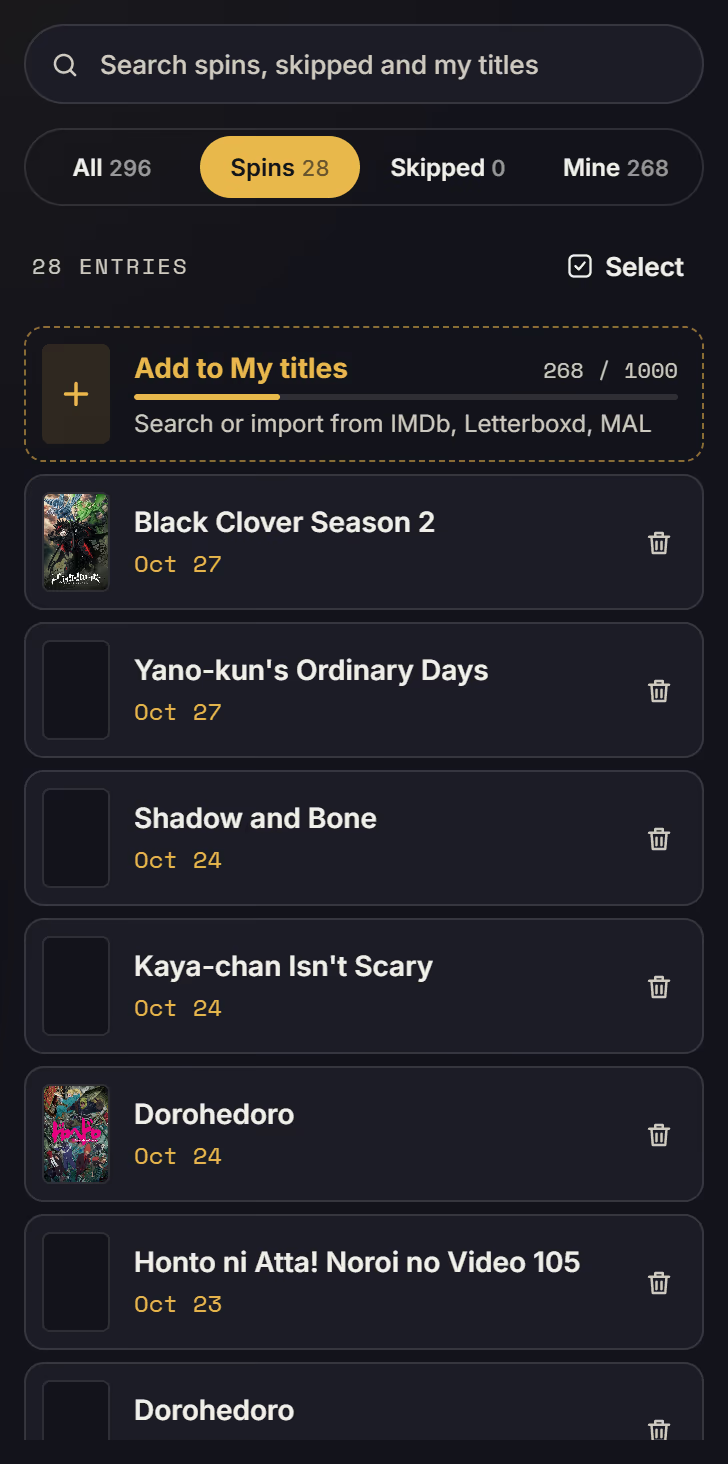
- Use the arrow on a wheel tab to rename, share or delete that wheel.
- To reorder wheels, drag a tab left or right. On a phone, press and hold a tab, then drag it. From the keyboard, focus a tab and press Alt with the left or right arrow.
- The Popular tab spins trending titles instead of your lists, with the same filters, skips and daily spins. Hide it from its arrow menu; + brings it back.
Shared wheels
A shared wheel holds titles from several people. Everyone sees the same wheel and every spin plays live for all of them.
- Press + next to the wheel tabs and choose Shared wheel, or share one of your wheels from its tab menu.
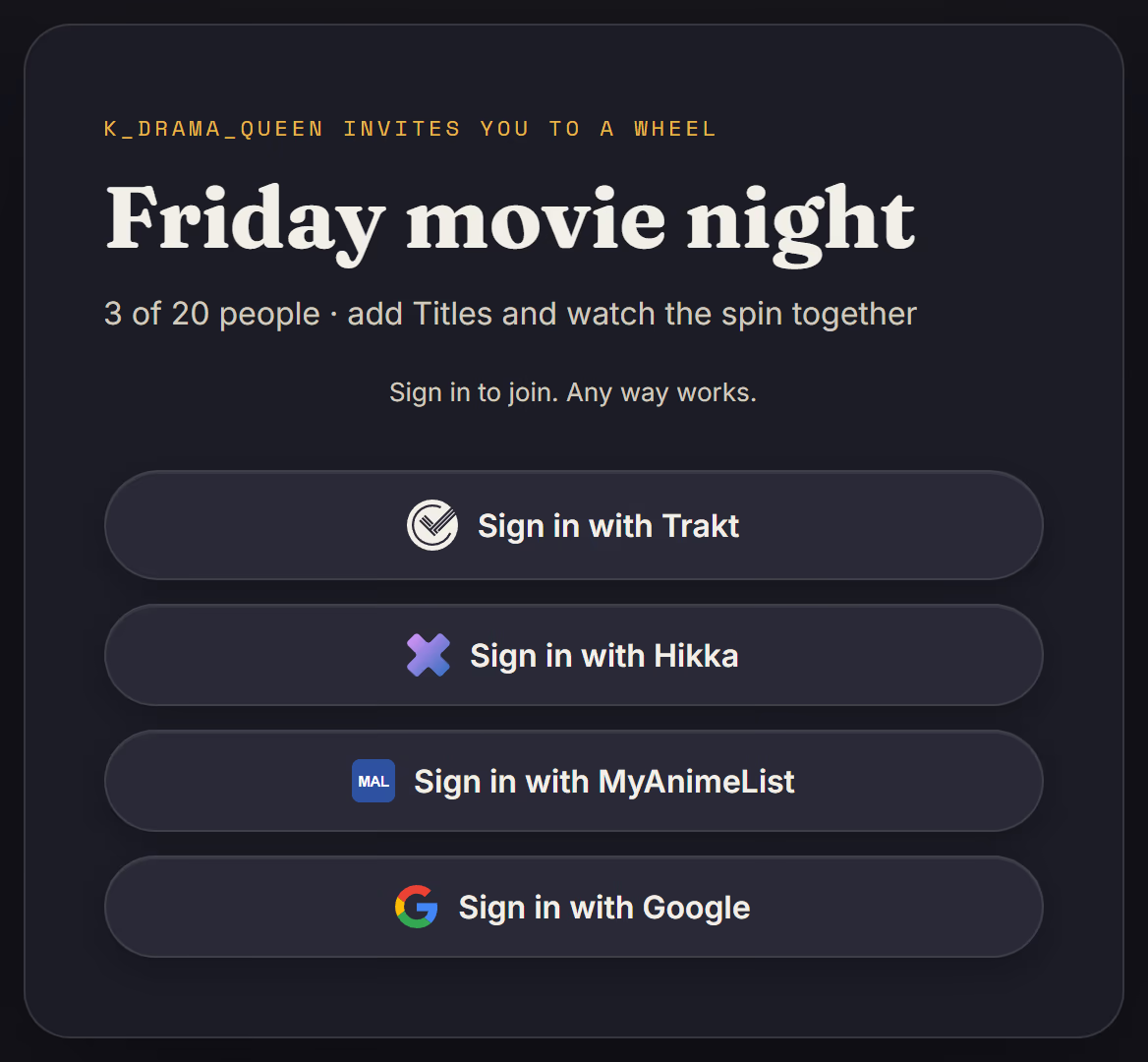
- Open the tab menu and choose Share link, then send the link. Anyone who opens it and signs in, in any way, joins.
- Each person adds titles with Add titles in the right column.
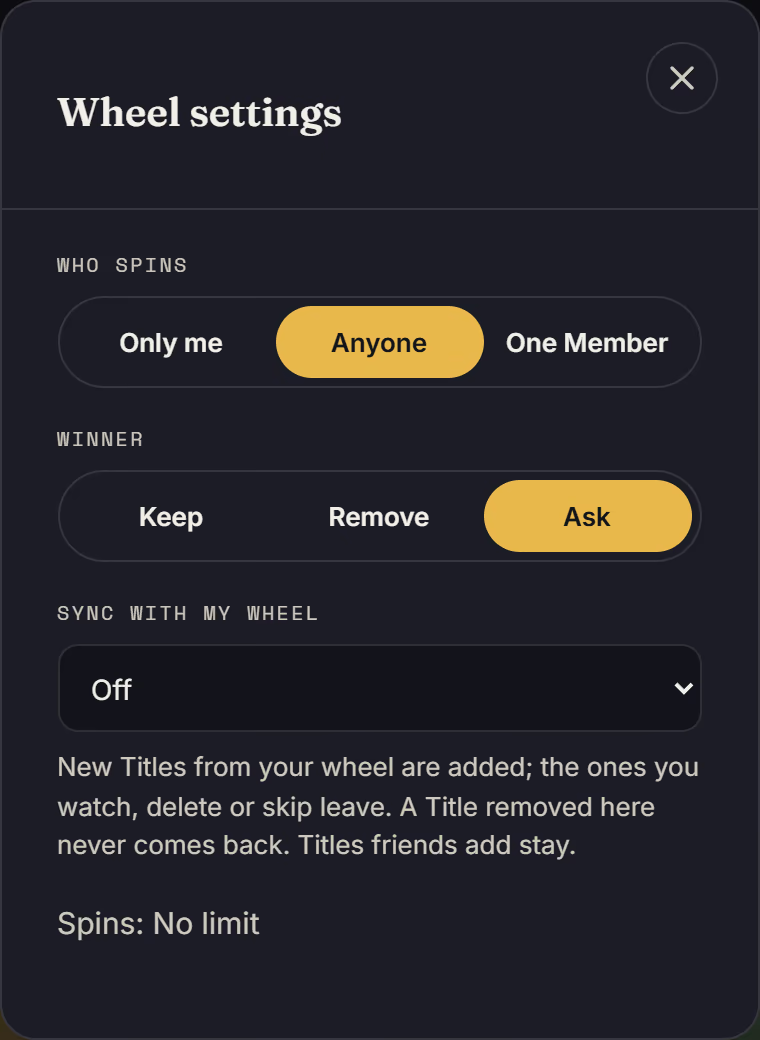
- In Wheel settings, choose who spins (only you, anyone, or one member) and what happens to the winner (keep it, remove it, or ask). With ask, closing the result keeps the winner, and a winner nobody decides on within 5 minutes counts as watched and is removed.
- On the Members tab, invite more people, remove someone with the bin button, or make someone a Manager with the shield button.
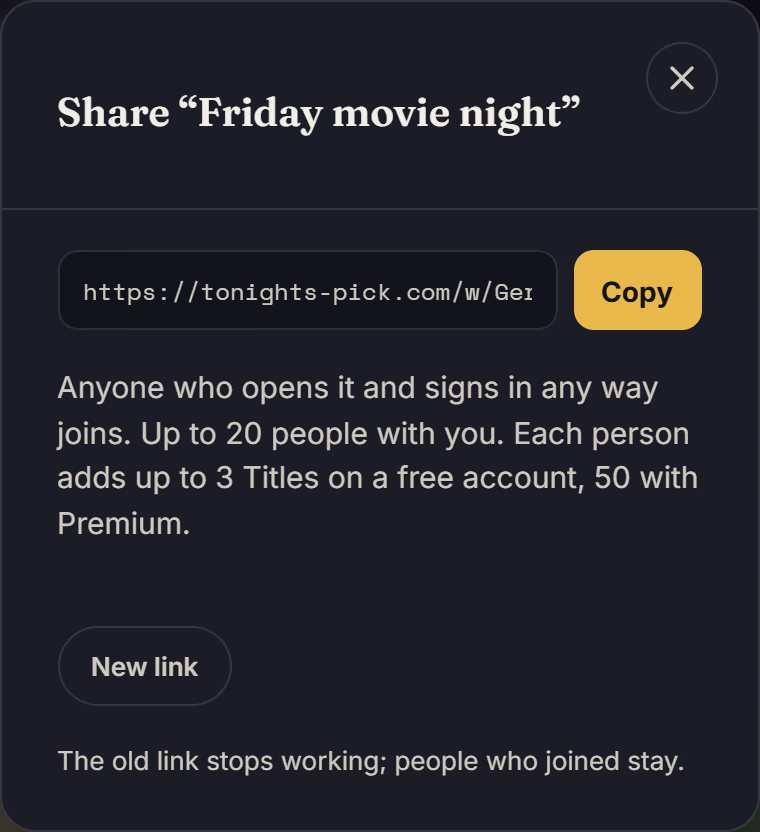
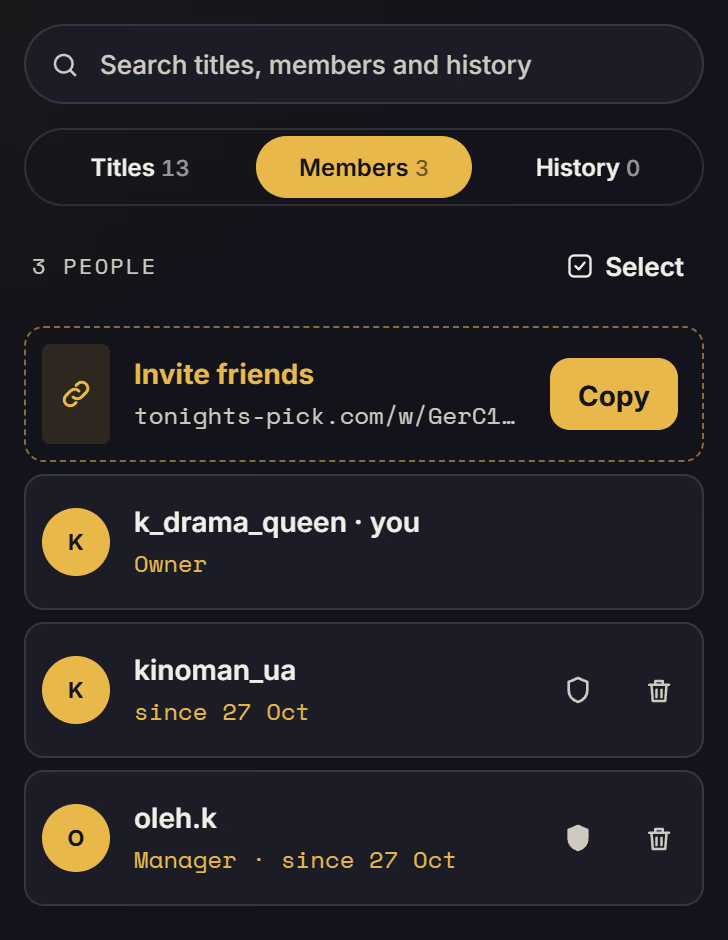
- A Manager helps run the wheel: filters, settings, the invite link, removing titles and plain members. Only the owner can appoint Managers, and only with Premium.
- New link makes the old link stop working; people who already joined stay.
- When someone joins, everyone on the wheel sees a notice at the top.
Your account
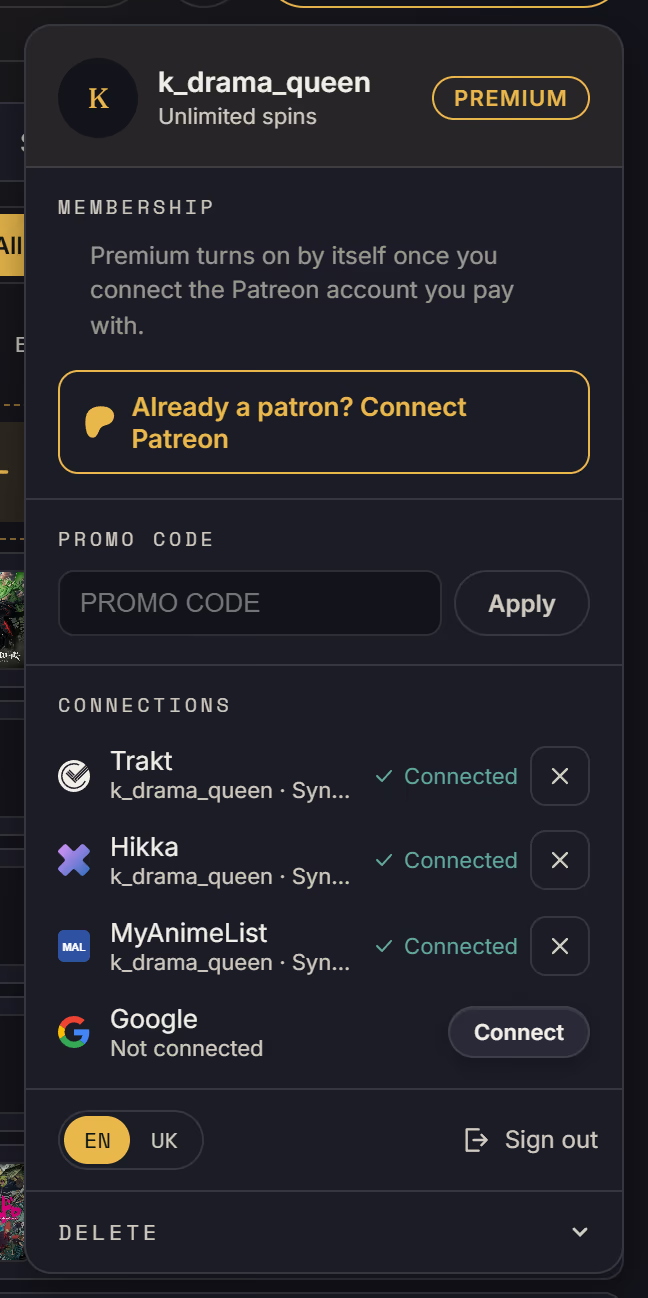
The account menu in the top right holds your connections, language, promo codes and deletion.
- Under Connections, press Connect next to a service to add it to the same account, or the cross to disconnect it.
- If the service you connect already has its own Tonight’s Pick account with nothing else connected, that account is merged into the one you are signed in to.
- Switch the language between EN and UK at the bottom of the menu.
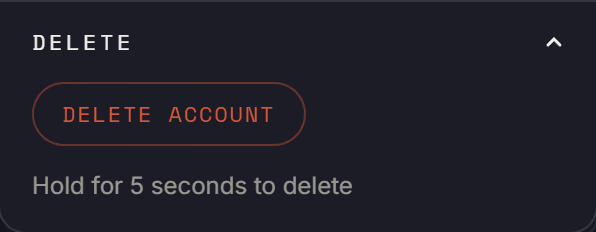
- To delete the account, expand Delete at the very bottom and hold Delete account for five seconds.
- The ? button next to the account menu replays the tour, opens this guide, and has Report a problem: a short form for bugs, ideas, and questions, with an optional screenshot.
- Deleting keeps only what stops daily limits from resetting; the privacy page lists it.
Premium
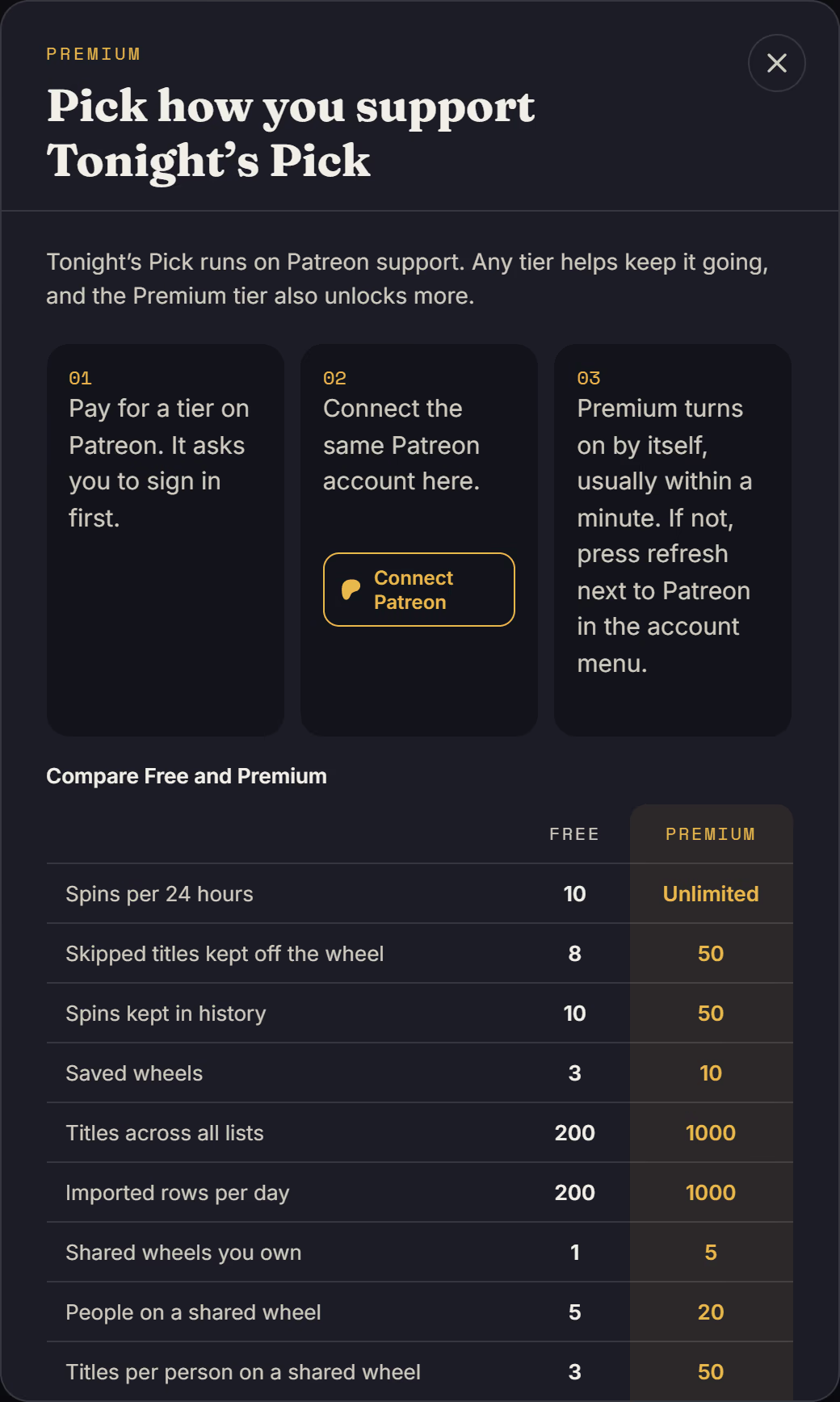
Tonight’s Pick is free. Premium raises the limits on spins, titles, saved and shared wheels, and friends on a shared wheel.
- Open the account menu and press Get Premium to see the tiers and the Free and Premium table.
- Pay for any tier on Patreon.
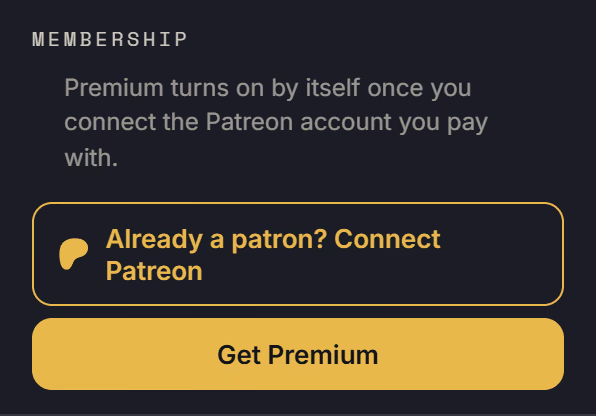
- Back in the app, open the account menu and press Already a patron? Connect Patreon.
- Sign in to the same Patreon account you paid with and allow access. Premium turns on within a minute.
- No Premium yet? Press Check subscription (the circular arrow next to Patreon in the account menu), and make sure you connected the Patreon account that pays.
- A promo code from the account menu can also give Premium for a while.
Install as an app
Tonight’s Pick can live on your home screen and open in its own window.
- Chrome or Edge on a computer: press the install icon in the address bar.
- Android: open the browser menu and choose Install app.
- iPhone and iPad: in Safari press Share, then Add to Home Screen. Do it from the app page so it opens straight on your wheel.